
Moving files around in SharePoint can be achieved using the Move File Action:

It isn’t always appropriate or possible to use this Action. Instead, one could use the slower, less pretty method, which is to:
- Load the file and contents
- Create the file in the new location
- Delete the file in the original location
I created a Scope to try and make the Flow a little more modular and understandable. Unfortunately, failure in a single Action doesn’t rollback previously successful Actions in the Scope: behaviour I’d have expected coming from a Microsoft SQL Server world.
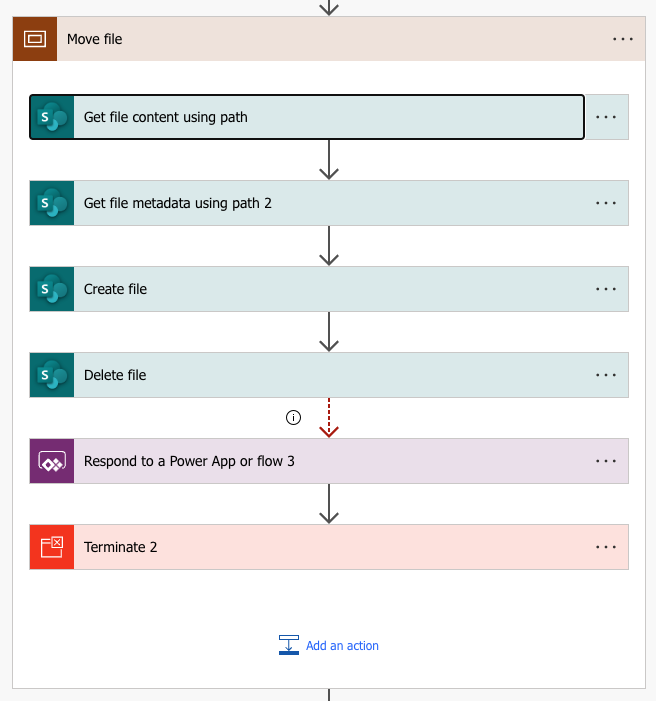
I’ll go through the Actions.
Get the file content using path
This will load the entire source file into memory. Here, we’re using parameters to build up the source file.

Obviously this isn’t a great solution for larger files.
Get file metadata using path
This Action lets us convert a path (which we’re passed in as a parameter) into the GUID used by subsequent SharePoint Actions.
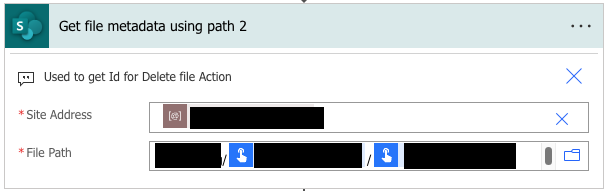
We build up the File path parameter using parameters passed in to the Flow. This represents our source file.
Create file
This Action takes the output of the Get file content using path Action and creates a new file with its contents.
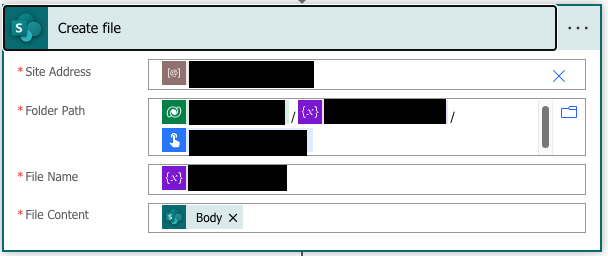
The Folder path requires a Document Location for integration into CRM records. The location of this can be retrieved from the Document Locations table in DataVerse. Have a look at Vidit’s guide for how to create and look this up for a particular CRM record. This gives a really good break-down of Document Locations and how they can be used to create locations for sites, entities and individual subjects.
Delete file
Finally, we delete the original file.
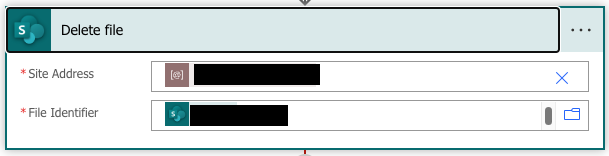
We pass in the GUID we got from the Get the file metadata Action as the File identifier to delete the original file.
 Live to work
Leave a comment