
The Language Learning Application is created and our basic entities built. We should now introduce workflow to ensure that behaviour is maintained and users fall into the pit of success.
Reminding ourselves of the requirement:
Solution that will connect learners and experienced speakers of a language, considering levels of skill and preferred communication methods to facilitate time-bound meetings which must be paid for by the learner.
Firstly, a basic element of the workflow is that the Apprentice must have been onboarded correctly. That is, they have been marked as having paid.
We will not cover the intricacies of accepting the payment here, just setting a flag.
Prepare the Person
We can identify a Person as having paid by adding a simple field, eg. “Date of Payment”. However, what if they paid for multiple matches with different people?
We need a new Table, which pairs the Mentor with the Apprentice. On this Table, we need to store:
- The Mentor
- The Apprentice
- The date of Payment
- The amount of Payment
We can add more detail to the Table later.
Create an intermediate Table to allow pairing of Mentors with Apprentices
This Table will be used to match a Mentor with an Apprentice using a user-interface, but until then we’ll just create the Table and hand-craft data. We’ll call this “Pairing”.
The Table should have the following columns:
| Field name | Type | Description |
|---|---|---|
| Mentor | Lookup (Person) | The Mentor paired with the Apprentice. If blank, the Mentor has not yet been chosen. |
| Apprentice | Lookup (Person) | The Apprentice. |
| Date Of Payment | Date/time | Date/time of payment. |
| Amount | Number | Amount of payment. |
The new Table editor is used to add and relate Tables. It’s important to remember that when making Lookup column (relationships) between Tables, the related Table needs to be added to the design surface first.
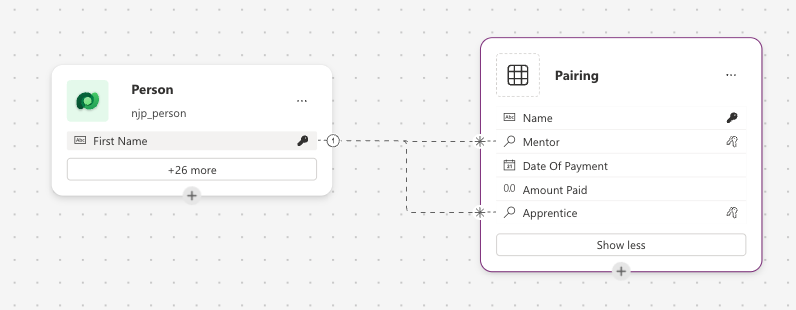
The Name column is the Primary Column. Ideally this would be automatically derived from the Apprentice and maybe their Mentor but this isn’t possible. We’ll need a Flow to do that after the fact.
Add some sample data:
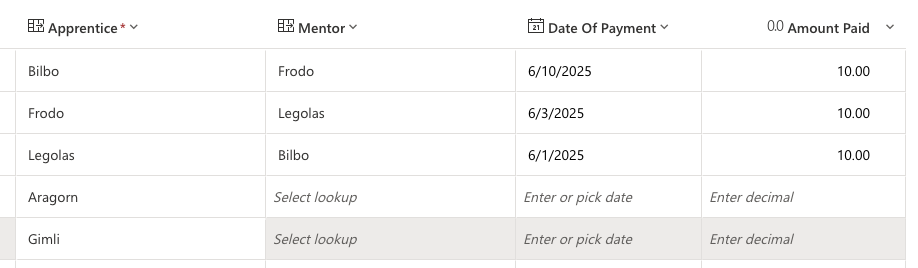
Neither “Aragorn” or “Gimli” have paid yet so have not yet been paired with a Mentor.
Build the Business Process Flow
Business Process Flows are created using the New > Automation > Process > Business process flow option within the Solution.
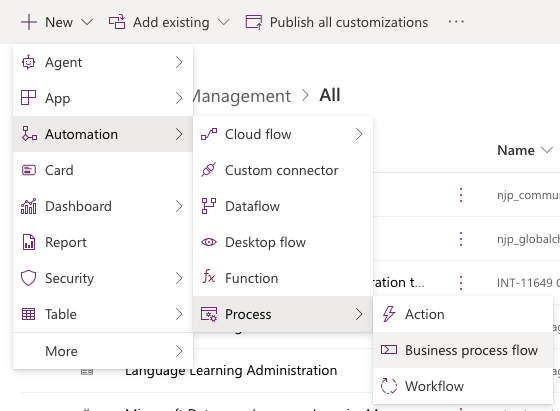
Creating a Business Process Flow requires an underlying Table, in this case, Pairing:
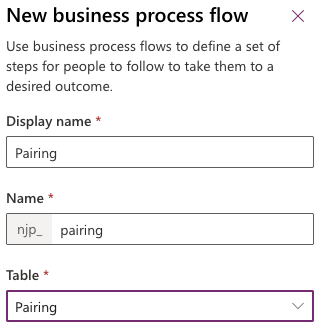
The Business Process Flow will have three distinct stages.
Select the Apprentice
Selecting the Apprentice will be the first step.
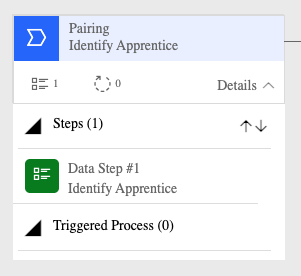
This will present a field for selection of the Apprentice. Make sure that the Data Step is required, to force selection of the Apprentice before the user can progress.
Confirm payment
Payment is confirmed in the second step, which can only be progressed to when the Apprentice as been selected.
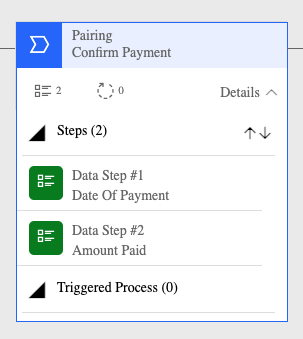
Again, make sure both Data Steps are required, to prevent progression until Payment is confirmed.
Create the Pair
The Pair is created when the Mentor is selected.
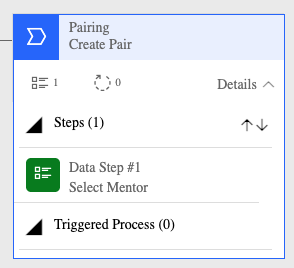
Add Pairings to the Model-driven App
Make sure that the Pairings Dataverse table is added to the Model-driven App:
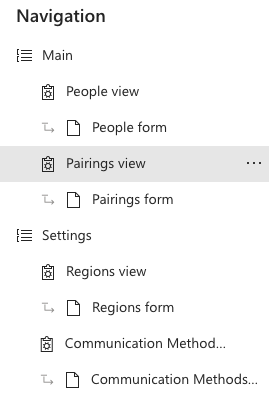
Selecting the Pairings in the navigation in the app itself displays our data:

Test the Form
Go to the App and click on Pairings and then New on the Command Bar. The Business Process Flow should appear long the top:

In order to test, enter some text in the Name field and click Save. This field will need to be hidden and auto-calculated.
Advancing through the Business Process Flow should be a matter of selecting the blobs and clicking on Next Stage until the process is finished. Each step will require the fields to have been completed before progressing.
The Name field needs to be automatically calculated, which should be automatic and without intervention by the user. This automation must also be supported across multiple-channels; we may need to accept data from other sources such as a Canvas App or API.
More in this series
As I go through this, there are more posts which I’ve created.
 Live to work
Leave a comment