
The Language Learning Application has been built and a workflow for creating Pairings is created. However, this Pairing entity requires the Primary Column “Name” to be completed.
Reminding ourselves of the requirement:
Solution that will connect learners and experienced speakers of a language, considering levels of skill and preferred communication methods to facilitate time-bound meetings which must be paid for by the learner.
The problem is that to be able to guarantee it having data, the field must be set at a Dataverse level. Experimentation shows:
- It isn’t possible using a Business Rule using Entity scope, which requires the primary column to have been populated before it executes.
- It isn’t possible using a Flow using a Dataverse “On record Added” trigger, which requires the primary column to be populated before the trigger is executed.
- It isn’t possible to set a default on the field on the Form, to apply (and maybe overwrite) a default value to the required field. Nor is it possible to delete it because it is a required field.
- It isn’t possible to use a process within the Business Process Flow because in order to activate the Flow, the record must be saved – which requires the completion of the required field.
We could make a Business Rule using the “All Forms” scope to set to a default fixed value, and then use a Flow to overwrite it on saving.
Create a Business Rule
Create a new Business Rule for the Pairings Table by navigating into the pairings table and clicking Business Rules, then New Business Rule on the command bar.
Set the basic details of the Business Rule, ensuring the Scope is set to “All Forms”.

The Business Rule should look like the screenshot below:
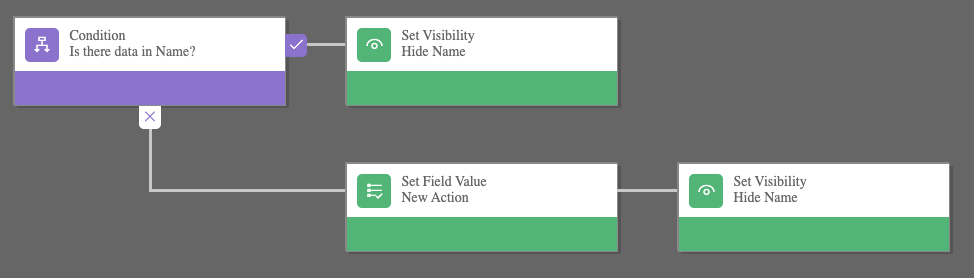
- The condition has a simple “Does Name contain data” condition. This first condition is a required step.
- If it does have data, the Name field is hidden.
- If it does not have data, the Name field is set to a default value (eg. “Set by business rule”) and the field is hidden.
The Business Process rules are:
IF
Amount Paid contains data
THEN
Hide field Name
ELSE
Set Name to "Set by Business Rule"
Hide field Name
Save and activate the Business Rule.
The model-driven app Form should be refreshed to reload the new Business Rule, which should have hidden the Name field. You should be able to create a new Pairing, with the Name field being set to the default value, eg. “Set by Business Rule”.
Business Rules cannot be used to do anything complex, such as dynamically setting this Name field. For that, we’ll overwrite the value once the record is created using a Flow.
Create a Power Automate Flow
The Flow should be triggered on when a record is added or modified.
Within the Solution, click New > Automation > Cloud Flow > Instant to create the Flow.

When prompted click Skip. Skipping this step is required because we need to use a Dataverse trigger that is not available in the provided list.
The designer will load with an initial trigger selection requirement. Select the Dataverse triggers, and the “When a row is added, modified or deleted” trigger.
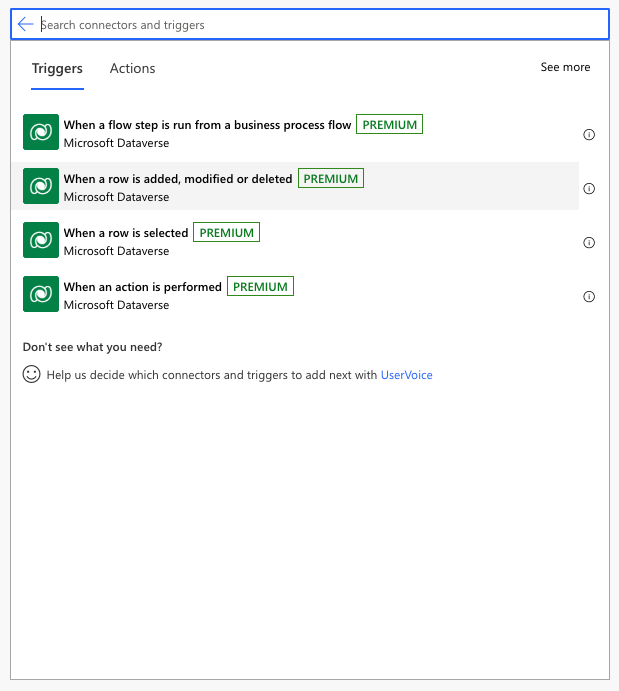
The Flow should be created similar to below:
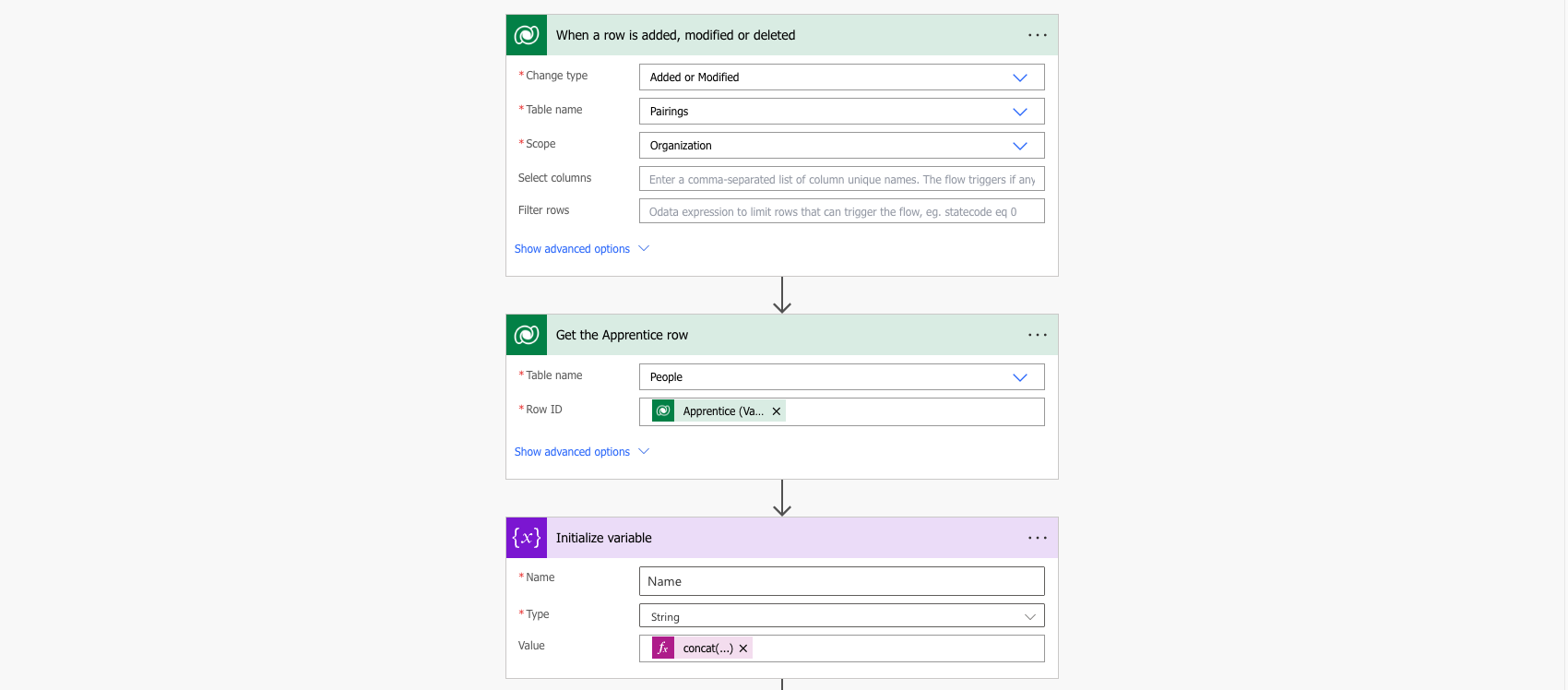

This builds a string combining the Apprentice, and later Mentor one selected. Therefore, during the lifetime of a Pairing, the Name field will be:
- Arwen
- Arwen – Aragorn
Now the Model-driven application is almost complete.
More in this series
As I go through this, there are more posts which I’ve created.
 Live to work
Leave a comment