
The Main Form for the Person entity will already have been created when the entity was created as part of the standard Forms created:
- Quick View
- Card
- Main
To refresh ourselves on our requirement:
Solution that will connect learners and experienced speakers of a language, considering levels of skill and preferred communication methods to facilitate time-bound meetings which must be paid for by the learner.
Adding the Person
Add the Person Dataverse table to the navigation on the Model-View-app within the Main navigation section:
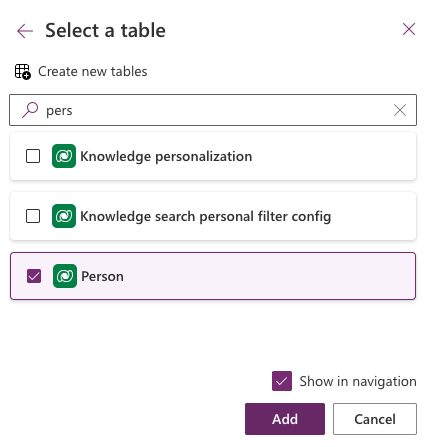
Save and publish the app and click the “Play” button to see the changes to the applciation. First you’ll go to the View:

Create a new Person by clicking New and you’ll get the basic form:

We’ll not make the form useful.
Adding fields to the Form
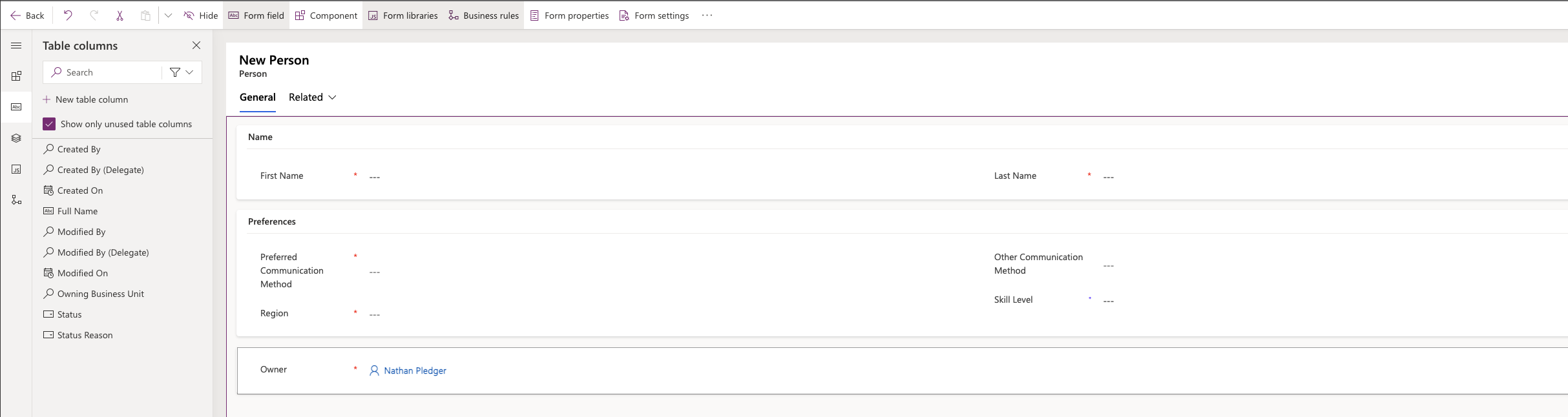
Fields that need to be added to the Form can be dragged from the left-hand palette and dropped onto the form.
Here I’ve added some fields and laid them out:
Add some data
Back on the form, remembering to refresh the browser to collect any changes since you last saved and published changes, add some records.

Each record should have the Full Name field calculating correctly, which is performed on saving the record.

Now we have people, we should allocate them to roles such as an apprentice and/or a mentor, along with optimising views for these roles.
More in this series
As I go through this, there are more posts which I’ve created.
 Live to work
Leave a comment